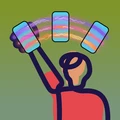
Waving
If I can't see what I'm waving, how do I know it's working?
You feel it. While you wave, the screen faces your audience, so Design Wave uses haptics to tell you what's happening. With the default setting, Speed Bumps, you feel little ticks as the phone moves across your message, and the ticks stop once you've gone past its end. Their pace tells you how fast you're waving. Turn on Waving too fast and your phone also gives a distinct buzz if you're sweeping faster than the message can be read. See Haptics in the User Guide for the other settings.
To see it for yourself, turn on Mirror Mode and wave at a mirror, standing well back from it, or run the Interactive Tutorial from Help in Settings, which grades your wave.
I'm waving but nothing shows up.
Wave from the shoulder with a straight arm. Raise the phone into position in one quick, smooth motion, then wave slowly. The Quickstart in the User Guide shows the whole motion, step by step.
People say the letters are jumbled.
The usual cause is waving too fast. Take at least a second per side; 2–3 seconds per pass looks great. Don't wave too fast explains why, and Haptics can warn you when you speed up.
The message is cut off or hard to read.
Keep it under about 30 characters. Longer messages need more than a half-circle sweep to fit. Stand back, too: about 5–6 meters (20 feet) is ideal. See Keep messages under about 30 characters and Give your audience some room.
The first wave looked off.
That's normal. Design Wave uses the first wave to learn your form. See The first wave is a warm-up.
My message says "Design Wave".
The message field is empty, so Design Wave shows its name instead. Type a message to replace it.
Which way should I wave?
Toward your audience. There's no fixed direction: Design Wave works it out from where your phone is pointing just before you start.
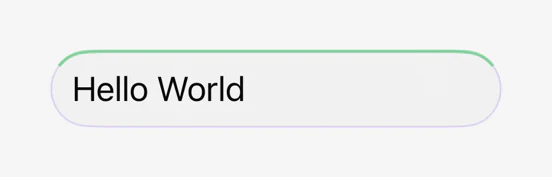
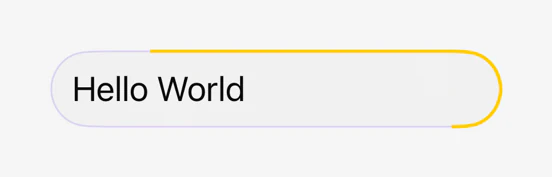
While you're typing or getting ready, hold the phone the way you normally would, with its top edge pointing at your audience. The thin colored line on the border of your message field shows whether Design Wave has caught up with where the phone is pointing:
- Green: you're ready to wave.
- Yellow or red: you've turned, and the app needs to adjust. Wait a moment for the line to turn green.
Then raise the phone overhead in one quick, smooth motion and hold it upright, so the screen faces the people the top was pointing at. See also Wave from a fixed spot, facing one way.

Can I turn to face a different direction?
Not while you're waving: keep the phone facing the same way the whole time. To wave toward a different audience, stop, let the app return to the Gallery, its home screen, then point the phone at the new audience and wait for the line to turn green.
The message stutters.
Your design may have several expensive effects. See Keeping it smooth in the User Guide and Go easy on combining effects.
Any tips for holding the phone?
Grip it firmly. A phone grip or strap helps. See Grip matters.
Still not getting it right?
Run the Interactive Tutorial again from Help in Settings. It grades your wave and gives you personalized tips. The Waving Tips page goes deeper on technique.
How it works
I saw someone wave their phone and a message appeared in the air. Was that Design Wave?
Very likely. Design Wave turns your iPhone into a banner: type a message, raise the phone overhead and wave it slowly from side to side, and everyone watching sees your message spelled out across the air, about ten times wider than the phone. The Quickstart in the User Guide shows you how.
How is it different from a big-sign or LED scroller app?
A big-sign app makes your text as large as the screen allows, which is still only as wide as your phone. An LED scroller slides the message across the screen, and no speed suits everyone: too fast for some readers, painfully slow for others. Design Wave spreads the whole message across the arc of your wave, so it's many times wider than the screen, and the audience reads it at their own pace, the way they'd read a banner.
Is it persistence of vision?
No. That's the most common guess, and the real answer is more interesting. Your phone becomes a window: as you sweep it overhead, Design Wave tracks exactly where the phone is and shows only the slice of your message that belongs at that spot. Anyone watching sees a still banner hanging in the air, revealed one slice at a time through a moving window. Psychologists call this anorthoscopic perception, or slit viewing, and first described it in the 1830s. Try it yourself in Your phone becomes a window on our home page.
A light-up wand has to flash its whole image dozens of times a second. Your audience's brain assembles a Design Wave message over a full one-to-two-second sweep.
Devices
Can I use Design Wave on iPad?
On iPad you can browse and preview designs, but waving needs an iPhone.
Which version of iOS do I need?
iOS 18 or later.
Privacy and safety
Does Design Wave collect my data?
No. There are no accounts, no analytics and no tracking. The app never asks for your location or contacts, and making and waving designs works fully offline. The Privacy Policy has the details.
Is my message saved?
Only your current design is kept, on your phone, so it's there next time you open the app. Design Wave keeps no history. Clearing the message field replaces the saved message, but, as with most apps, deleted text can linger in the phone's storage for a while. See Protests and sensitive events for how to remove it from your phone.
Can I use Design Wave at a protest?
Yes. Read Protests and sensitive events first. Remember that a message you wave is public: cameras and bystanders can link it to you. Airplane mode alone doesn't stop your phone recording your location.
Contact
For anything else, use Contact Us in Settings, or email our support team. Privacy questions can go to privacy@reiterate-app.com.