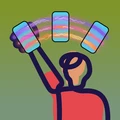
Design Wave lets you paint a message in the air. You make a design, hold your phone up facing your audience, and wave it back and forth. The screen acts as a window onto a message that seems to hang in the air. Your message appears as a banner up to three feet wide, readable up to 100 feet away or more.

Quickstart
Just type a message, raise your phone and start waving.
The first time you open Design Wave, a short Interactive Tutorial teaches you proper waving form. If you'd rather jump straight in, tap Skip Tutorial. You can come back to it any time from Help in Settings.
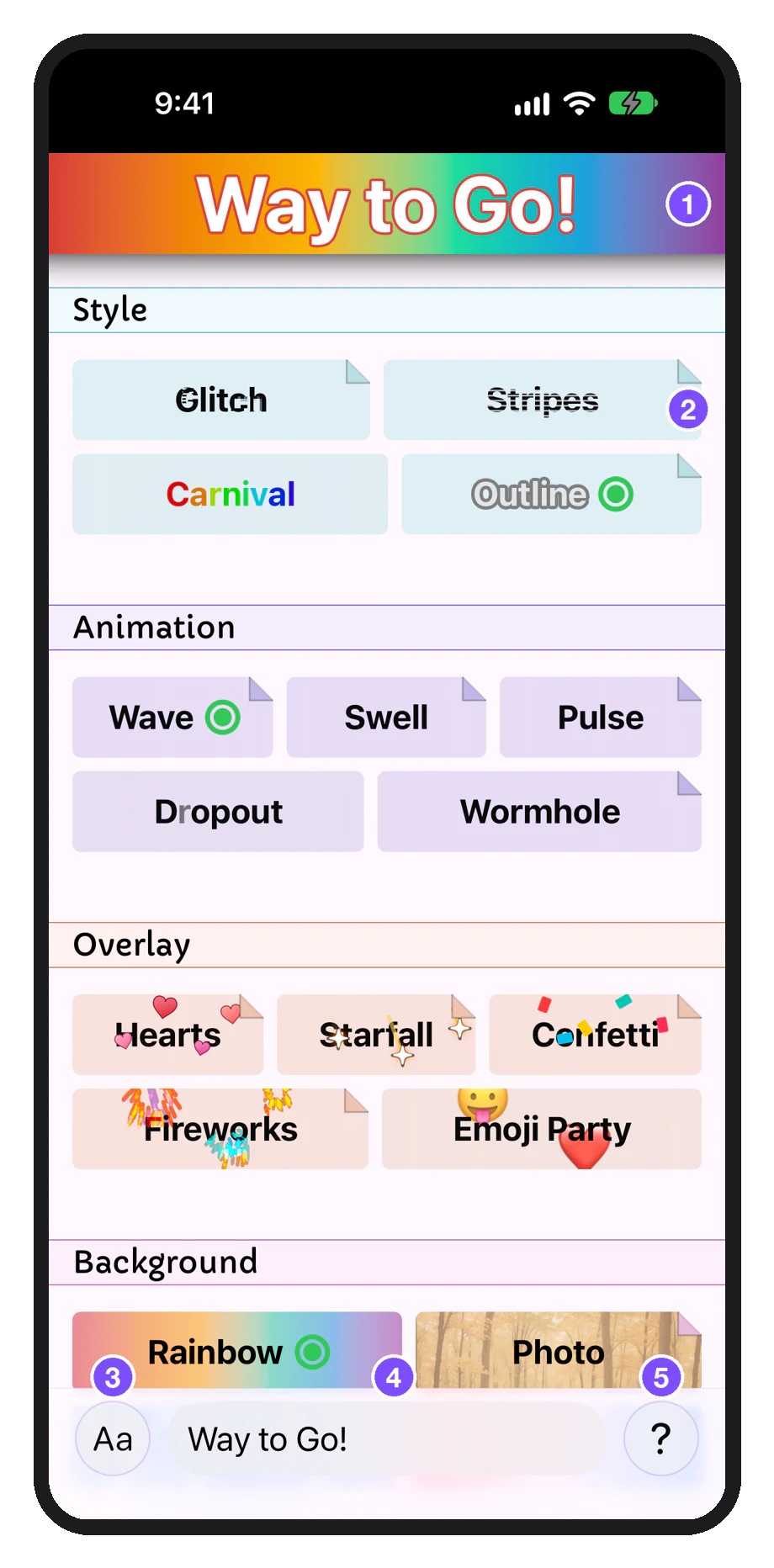
- Preview: what your audience will see
- Thumbnails, grouped by category
- Aa: font, color and Reset Design
- Your message
- ?: Settings and help
- Type your message in the field at the bottom of the Gallery. Short messages work best: under about 30 characters.
- Add effects (optional). Tap any thumbnail to add a Style, Animation, Overlay or Background. The preview at the top shows what your audience will see.
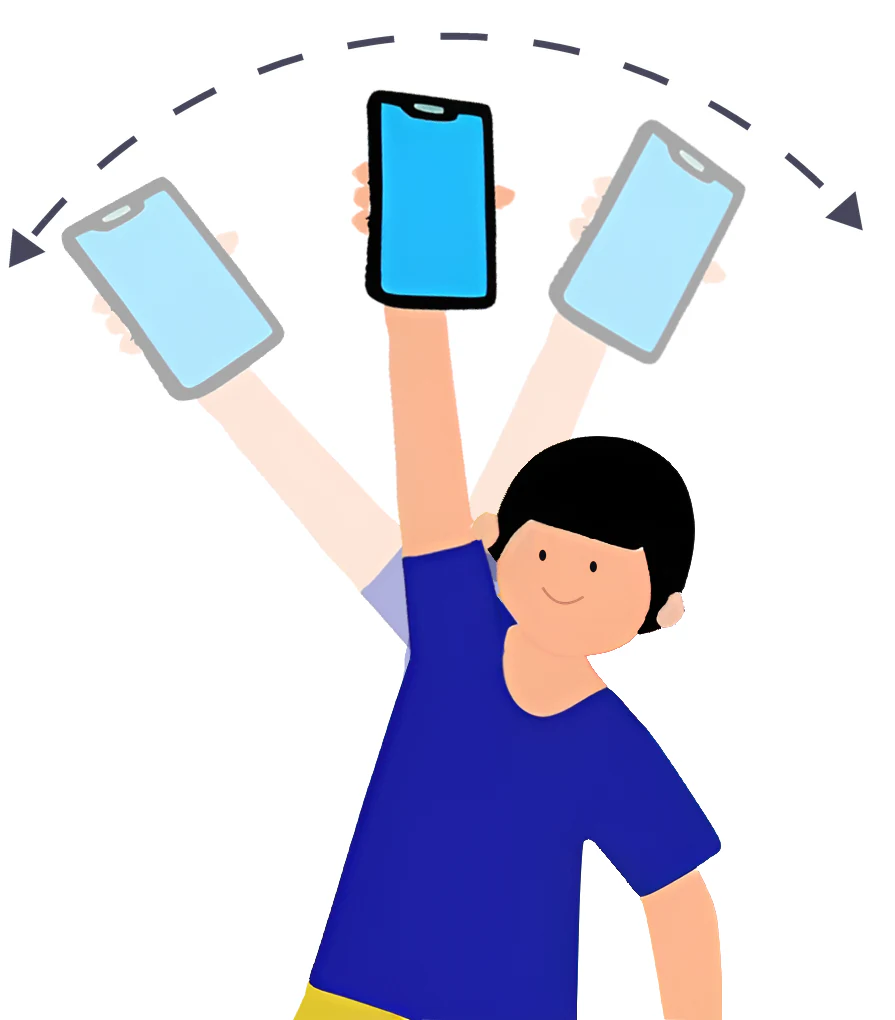
- Face your audience. Stand about 5–6 meters (20 feet) away. Hold the phone upright (portrait), with the screen facing them.
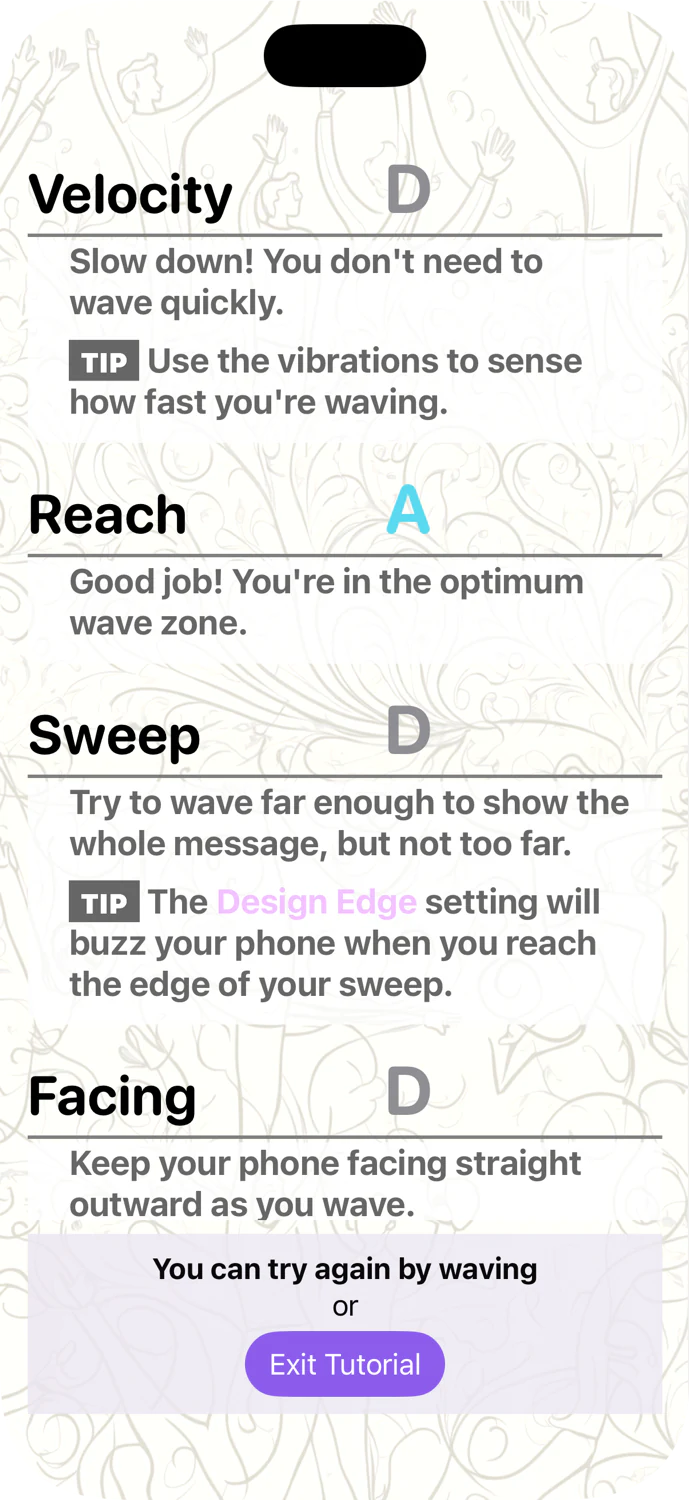
- Wave from the shoulder. Keep your arm straight and sweep the phone overhead, about one second to each side. Design Wave starts showing your message as soon as it recognizes that you're waving.
- Stop waving to finish. The app automatically returns to the Gallery.
Design Wave may take a moment to adjust to your particular waving style. Your design will appear when it's ready.
For more on technique, see Waving Tips.
How designs are composed
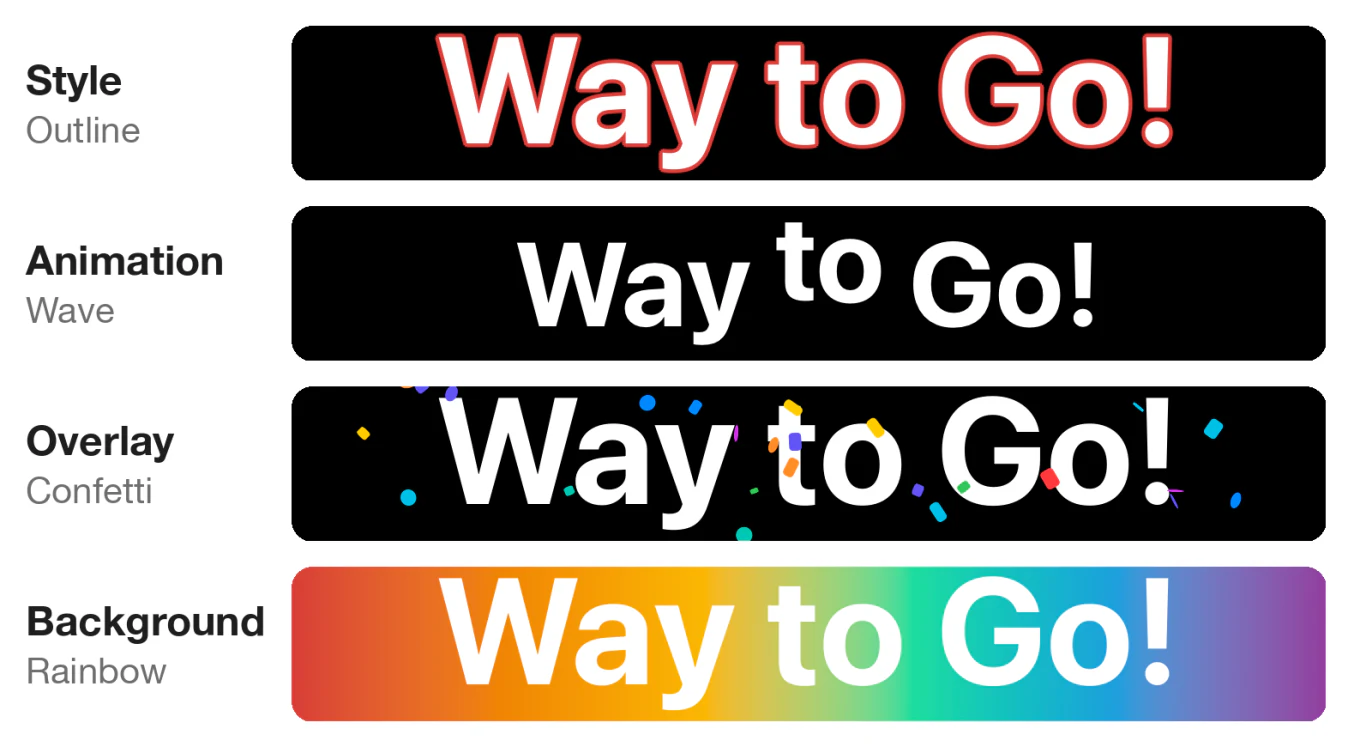
A design is your message plus up to four effects, one from each category in the Gallery.
| Category | What it changes | Examples |
|---|---|---|
| Style | How the letters themselves are drawn | Outline, Glitch, Stripes, Carnival |
| Animation | How the letters move | Wave, Pulse, Swell, Dropout, Wormhole |
| Overlay | Things in the air around your message | Fireworks, Confetti, Hearts, Starfall, Emoji Party |
| Background | What's behind the message | Flag, Photo, Rainbow, Textile |
Choosing and switching effects
Your design can have one of each type of effect: Style, Animation, Overlay and Background. If you haven't picked an Animation yet, tapping one adds it. If you already have one, tapping a different one replaces it.
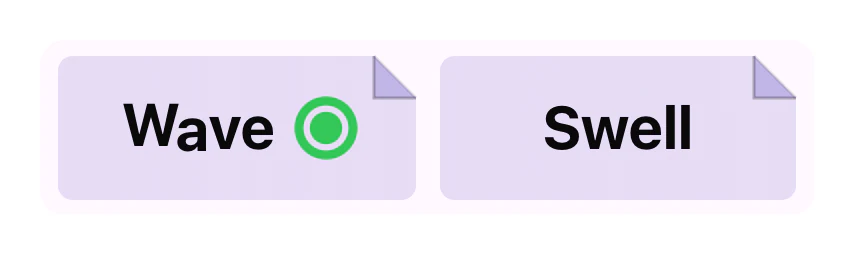
An effect that's in your design shows a green dot on its thumbnail. Tap the dot to turn that effect off. The dot stays visible for a few seconds afterwards, so you can toggle it on and off to see how it affects your design.
Effect settings
Tap a thumbnail to add it to your design and open its effect settings. The preview at the top of the screen updates as you adjust the sliders. Tap the preview, or anywhere outside the panel, to close it. The panel's title also has a green dot, which turns that effect on or off.
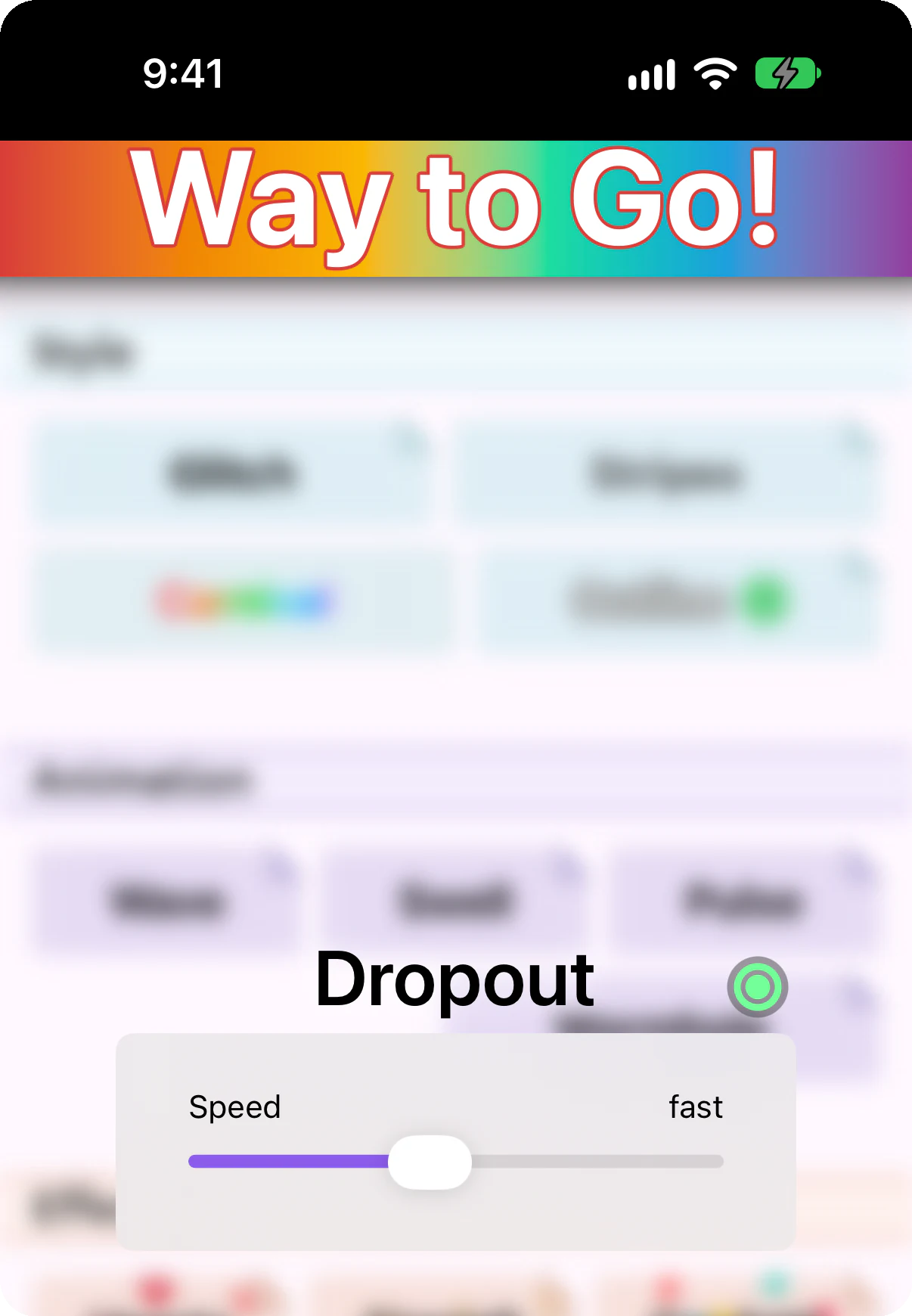
A few effects, such as Carnival, have no settings. Tapping them just turns them on or off.
Some effects need extra input. Photo lets you choose a picture and pinch to zoom and position it. Flag has a catalog of flags to choose from.
Font and color
Some settings apply to your message, not to its effects. Tap the Aa button next to your message to:
- Change the font. Any font installed on your phone works.
- Change the text color.
- Reset Design: remove every effect and return to the default font and white text. Your message stays.
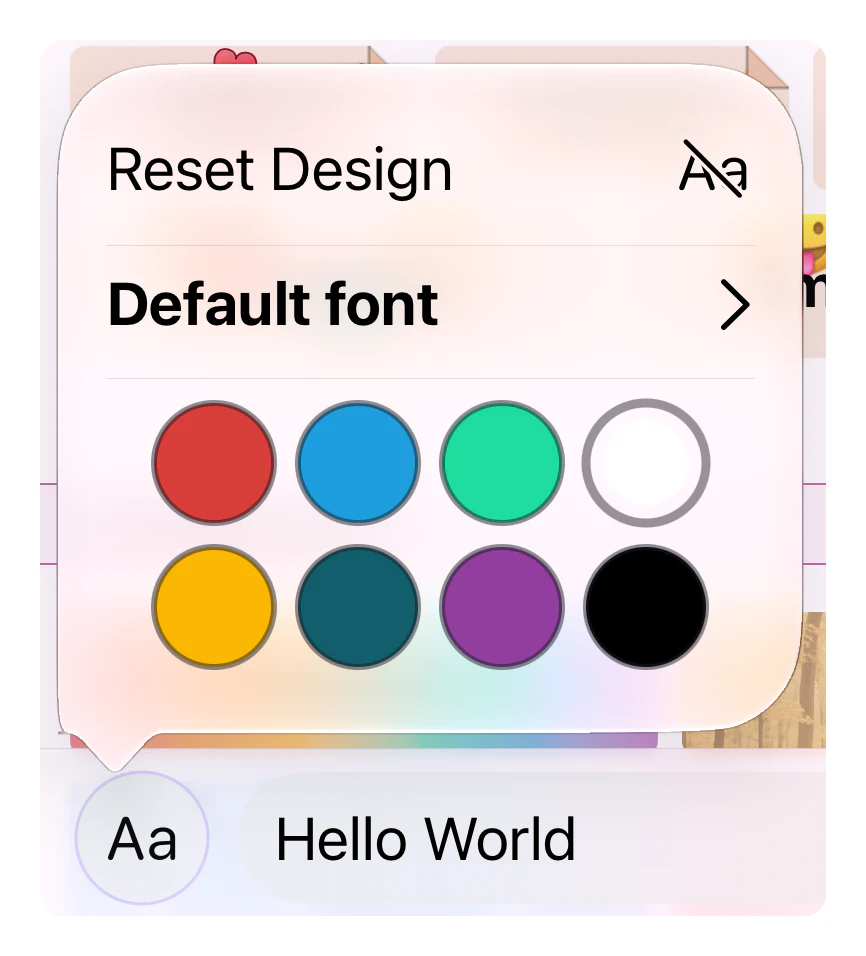
Font and color carry through whatever Style, Animation or Background you choose.
Keeping it smooth
While you wave, your phone redraws your design many times a second. Some effects take a lot of work, and several expensive effects together can make the message stutter, especially on older phones. If that happens, try a simpler Animation or turn off the Overlay.
Settings
Open Settings from the ? button next to your message.
Haptics
While you're waving, the screen faces away from you, so you can't see what your audience sees. Haptics let you feel your design. You can choose:
- Speed Bumps (the default): you feel a tick as the phone moves across your message. The ticks stop once you've gone past the end, and their pace tells you how fast you're waving.
- Design Edge: your phone buzzes when it reaches either end of your message, so you know exactly how wide you have to sweep your wave.
- Metronome: a tick once a second whatever your design, to help you keep a steady pace.
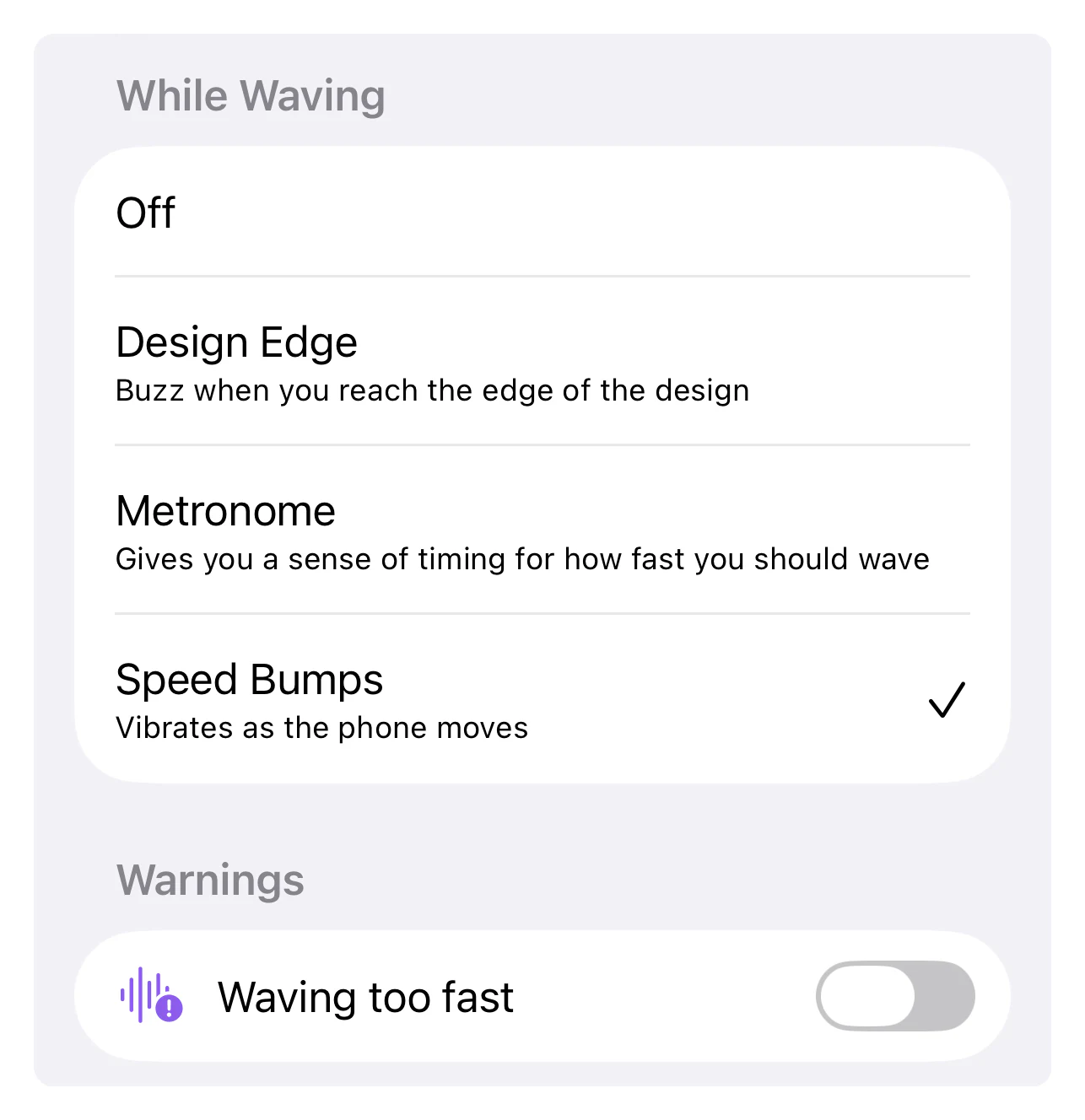
Waving too fast is a separate warning you can turn on. Your phone gives a distinct buzz if you're sweeping faster than the message can be read.
Mirror Mode
Mirror Mode flips the message left to right, so it looks correct when viewed in a mirror. Design Wave is made to be seen by someone else, so with no one around, this lets you wave at a mirror and see your design yourself.
Sort by
Sets the order of thumbnails in the Gallery: Release Date, Recently Used or Alphabetical.
Help
- Interactive Tutorial teaches waving technique in front of a mirror. It opens automatically the first time you launch Design Wave, so come back to it here if you skipped it or want a better grade. Wave until the message appears, then stop. You get a grade from S to D, plus personalized tips. You can retry by waving again. The tutorial shows the message mirrored whatever your Mirror Mode setting is, because you're watching it in a mirror.
- Video Demo shows Design Wave in action.
- Waving Tips gives you advice on how to improve your waving form, on the tips page.
- Contact Us to get in touch with support.
About
Terms of Service and Privacy Policy open on the web. Legal Notices lists font licenses.
In-app purchases and subscriptions
Many effects are free. The rest you can try out in the preview to see what they look like, and unlock one at a time or all at once.
Trying a paid effect
A paid effect has a folded corner on its thumbnail. You can add it to your design, change its settings and watch it in the preview. Its panel says Preview Only.
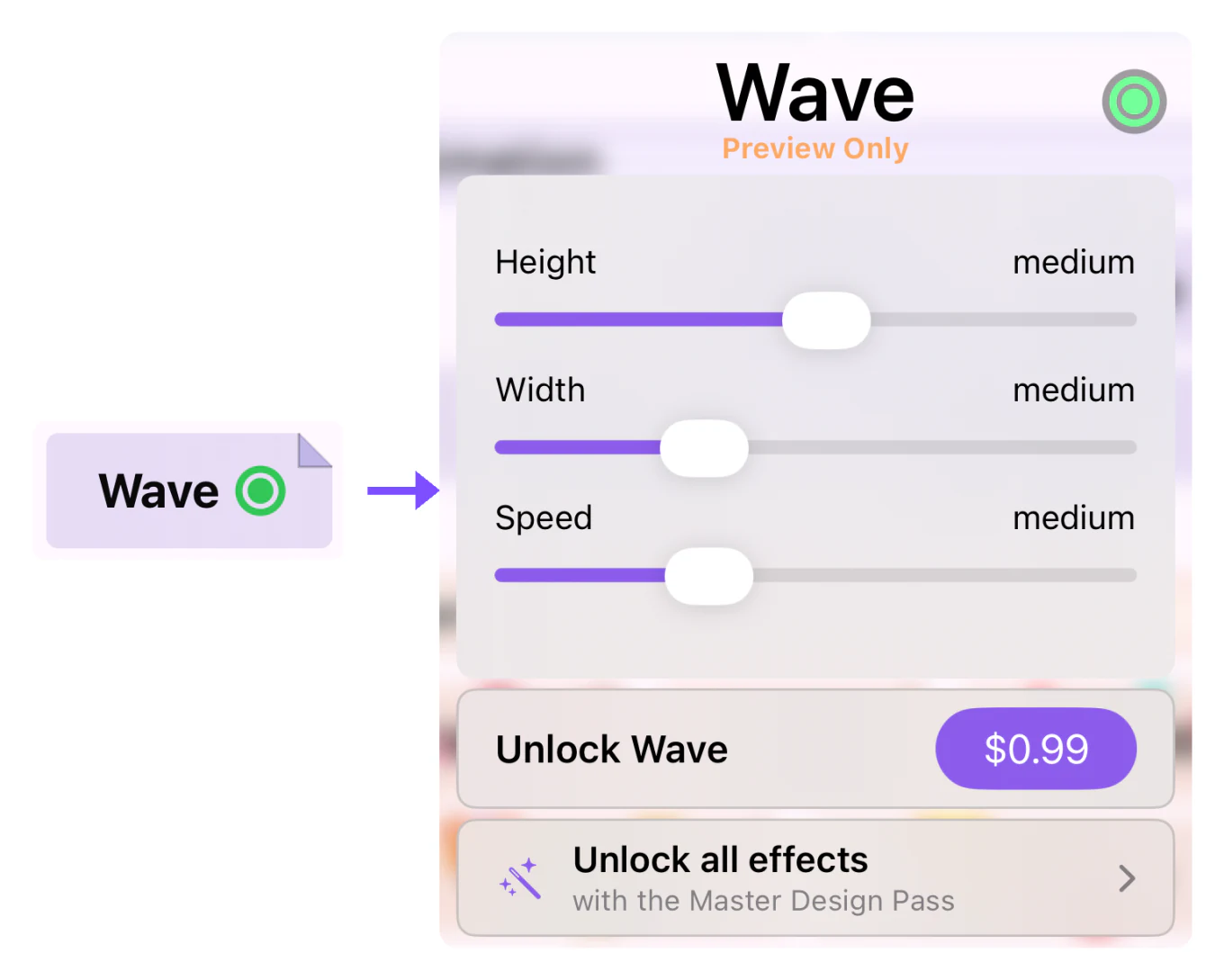
If you wave a design that includes a locked effect, the wave goes ahead without that effect.
Unlocking
| Option | What you get | How |
|---|---|---|
| Single effect | That one effect, permanently yours to keep | Unlock button in its effect settings |
| Master Design Pass | Every paid effect, including new ones as they're released. Shared with your Family Sharing group | Monthly or yearly subscription, starting with a one-month free trial |
Once an effect is unlocked, its panel says Unlocked. If Ask to Buy is on for a child's account, the button shows Awaiting Approval until a parent responds.
Managing purchases
The Purchases section of Settings has:
- Manage Subscription: change or cancel your Master Design Pass (shown only while you're subscribed).
- Restore Purchases: bring back your unlocks on a new phone or after reinstalling.
- Redeem Code: enter an offer code.
- Request Refund: ask Apple to refund a single-effect purchase. To stop paying for a subscription, cancel it with Manage Subscription instead.
More help
Answers to common problems are in the FAQ. For anything else, use Contact Us in Settings.